The Apple Touch icon explicitly provides the image used when a visitor adds your site to an iPhone home screen. It remains separate from the browser-tab favicon and icons declared in the web app manifest.
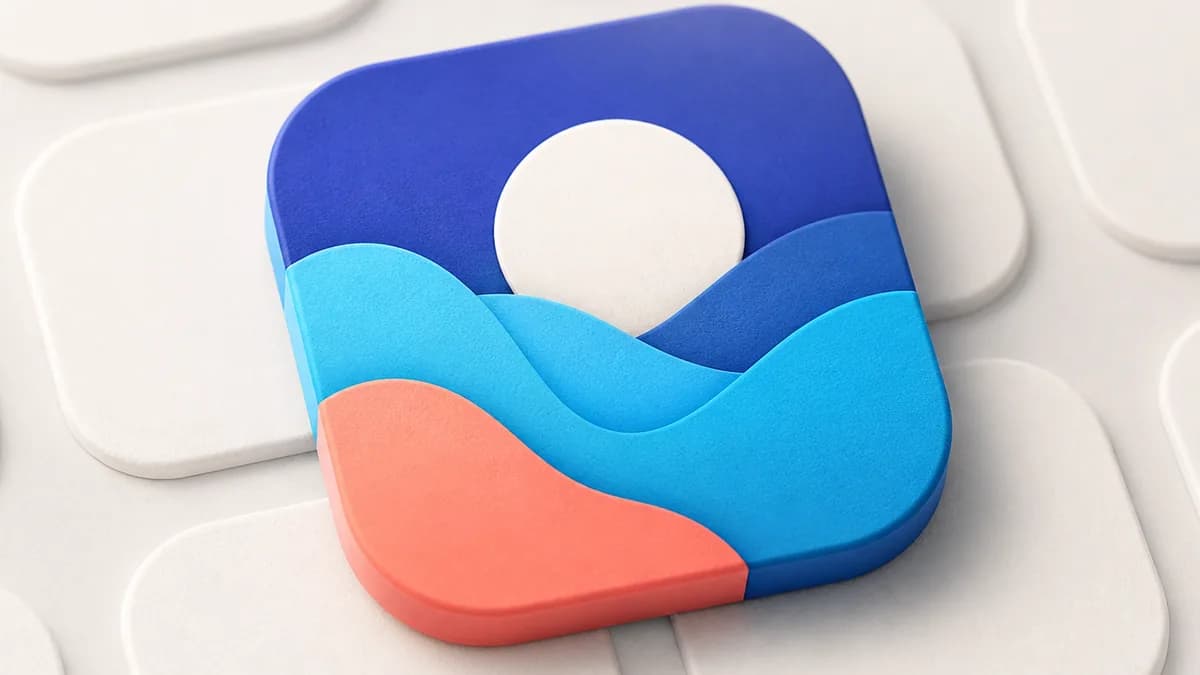
One size only: 180×180
180×180 pixels is commonly used as a high-resolution source. iOS can scale that image down for smaller placements, allowing most projects to keep a single declaration.
Older recommendations listed eight files, from 57×57 to 152×152, each with its own sizes attribute. Those variants no longer serve a purpose: they bloat your HTML and trigger extra requests for an identical result.
The file must be a PNG. iOS reads neither SVG nor WebP for this icon, and a JPEG ruins the crisp edges of flat artwork.
Prefer an opaque background
A transparent background can produce an unexpected result depending on the version and display context. To control the home-screen appearance, provide artwork on an opaque background you have chosen.
The fix is to flatten the icon onto an opaque background before exporting. Pick a brand color, or plain white if your symbol is colorful, and leave roughly 10% padding around the artwork so it can breathe.
Do not round the corners yourself, though: iOS applies its own rounded mask on top. An already-rounded file gives you a double radius, with ugly corners.
The tag to paste
One line in the head of your pages is enough: link rel="apple-touch-icon" href="/apple-touch-icon.png". The sizes attribute is optional when you ship a single file.
Optionally add meta name="apple-mobile-web-app-title" content="Your brand" to control the label shown under the icon. Without that tag iOS falls back to the page title, which is usually too long and gets truncated.
Also drop a copy of the file at the root as apple-touch-icon.png: like favicon.ico, iOS looks for it at that address when no tag is found.
Why your icon refuses to update
iOS caches the icon aggressively, and a shortcut already sitting on the home screen never changes by itself. To test a new version, delete the shortcut, clear Safari's data, then add the site again.
If the icon stays missing, check three things: the file answers 200 and not 404, it is served with the image/png content type, and it is not blocked by a robots.txt rule or by authentication.
The LFFavicon checker tests exactly these cases against any public URL and shows the icon it actually fetched.
Primary sources
Frequently asked questions
Do you need several apple-touch-icon sizes?
For most projects, one high-resolution 180×180 file lets iOS produce smaller renderings. Test the devices included in your support matrix.
Does Android use the apple-touch-icon?
Chrome on Android can fall back to it, but it reads the web manifest icons first. Always declare your 192×192 and 512×512 icons in the manifest, that is the official path.
Can you use an SVG as an Apple Touch icon?
No, iOS expects a raster PNG for this tag. Keep the SVG for the desktop browser favicon, where it brings sharpness and dark mode support.